

Why I built the CryptHEX
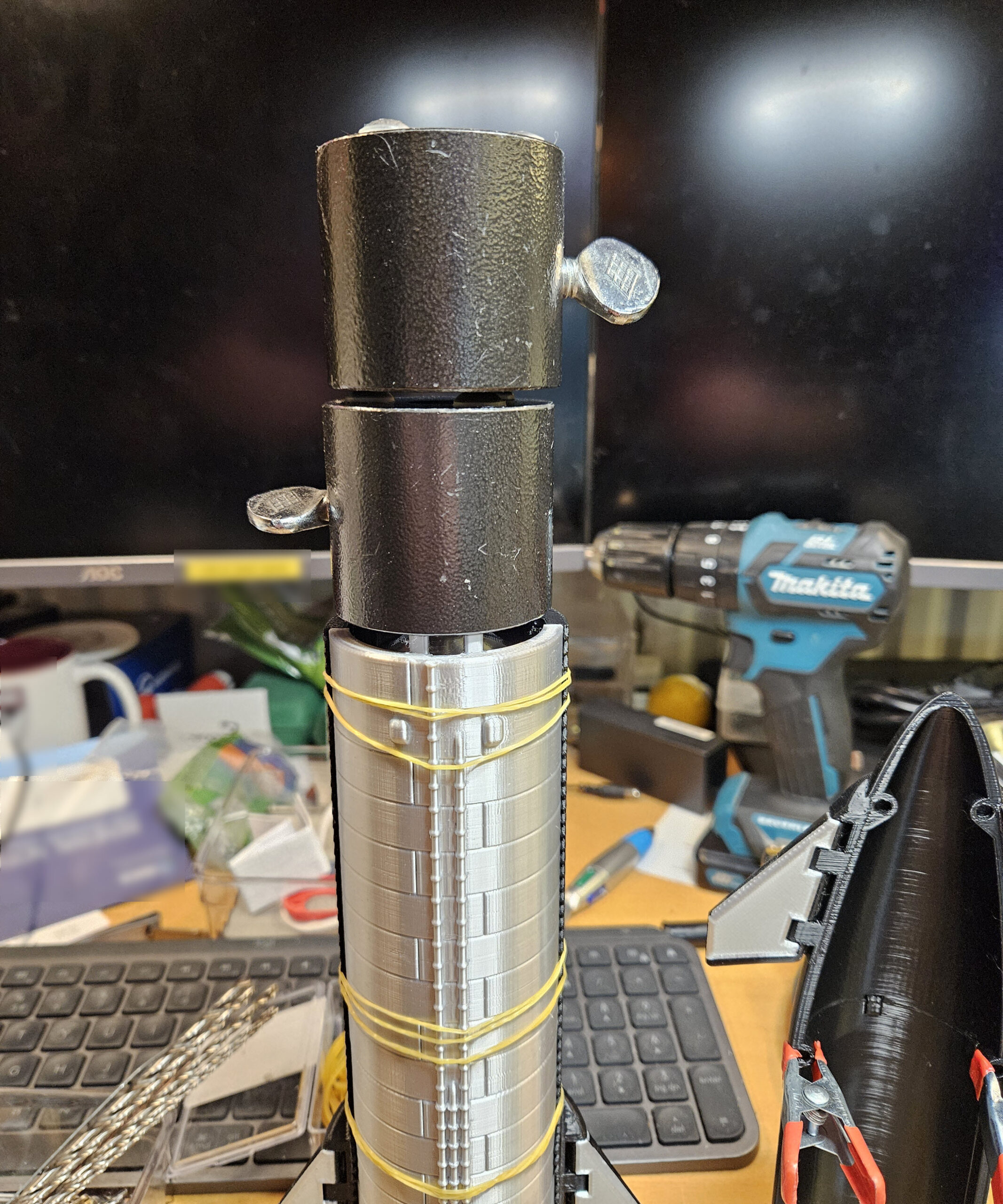
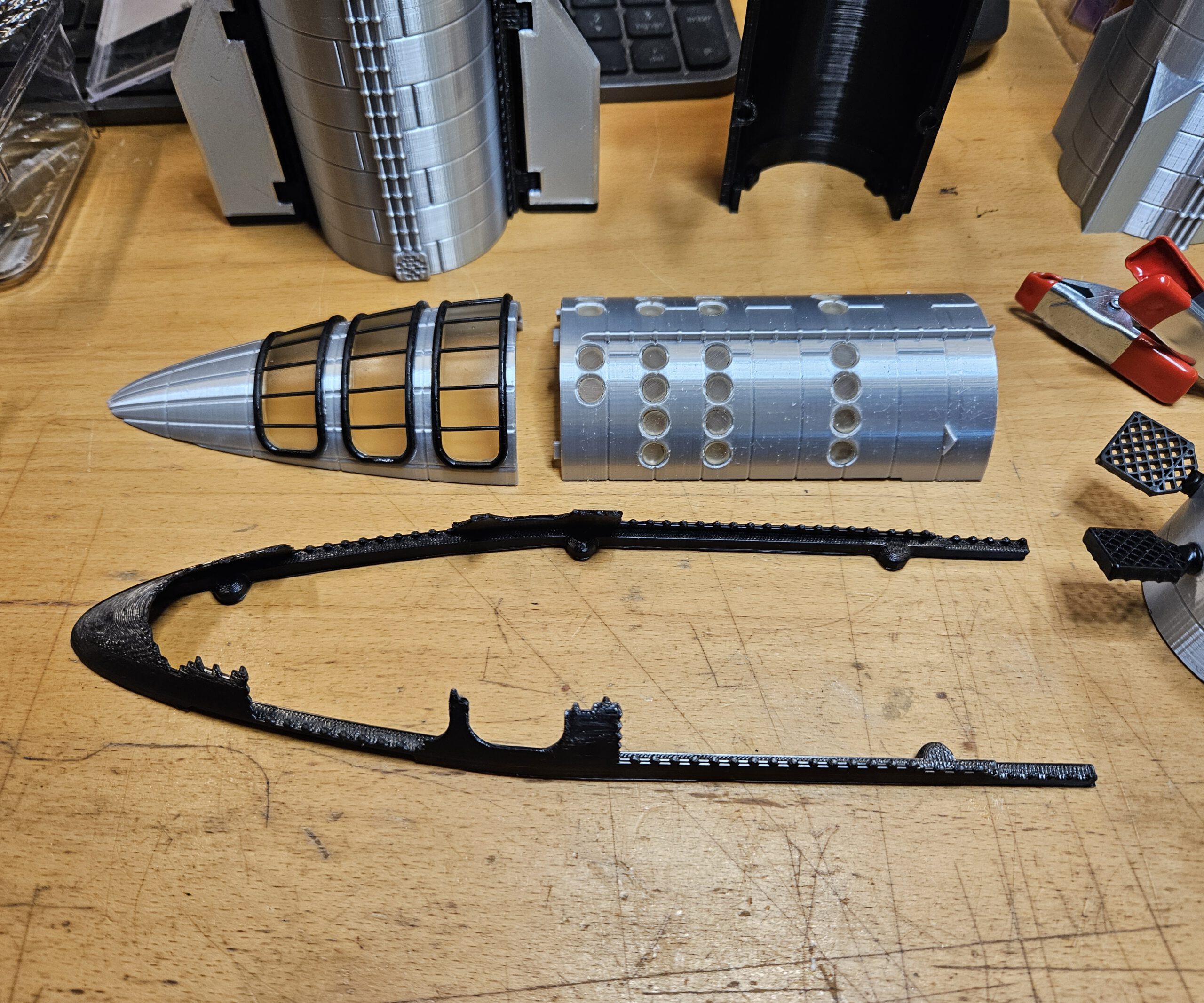
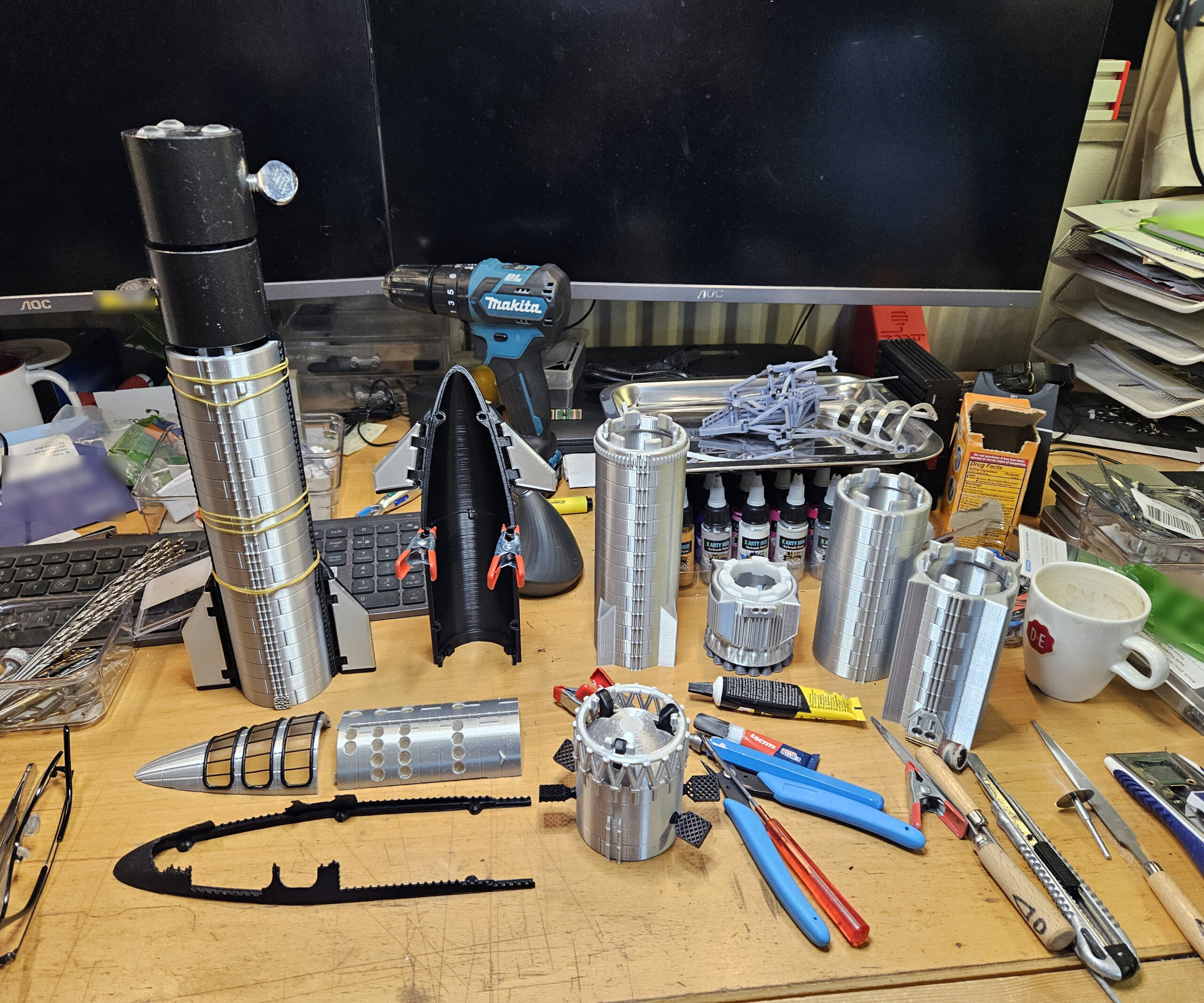
The CryptHEX (9SQM) — A fully mechanical 3D-printed cryptex I designed for a Cyber Security CTF (Capture The Flag). Twelve independently rotating rings each have 16 hexadecimal positions (0–9, A–F), creating a 48-bit combination space. Solving one of the CTF challenges revealed the code needed to open the CryptHEX; inside was the code required to continue with the next challenge. Flexible TPU locking pins make the correct ring positions deliberately difficult to detect by feel. Forget the code and there is no reset button, recovery procedure or password hint. There is, however, a saw.

Using the CryptHEX
1. CryptHEX — Assembly, Code Setup and Locking
Before You Start
The CryptHEX uses twelve code rings, each with 16 positions: 0–9 and A–F. The combination therefore consists of twelve hexadecimal characters.
Each code ring works together with a click ring, providing 16 distinct rotational positions.


The inner tube carries twelve flexible lock pins. For the inner tube to be inserted or removed, the openings in all twelve rings must be aligned with these lock pins.
The O markings are used during assembly to indicate the position of the lock pins. The arrows at the top and bottom of the CryptHEX indicate the code-reading position.
Important: Make sure you know the intended 12-character code before locking the CryptHEX. Once locked, it cannot be opened without the correct code. If you forget it, mechanical persuasion involving a saw may be required.
Step 1 — Install the Click Rings
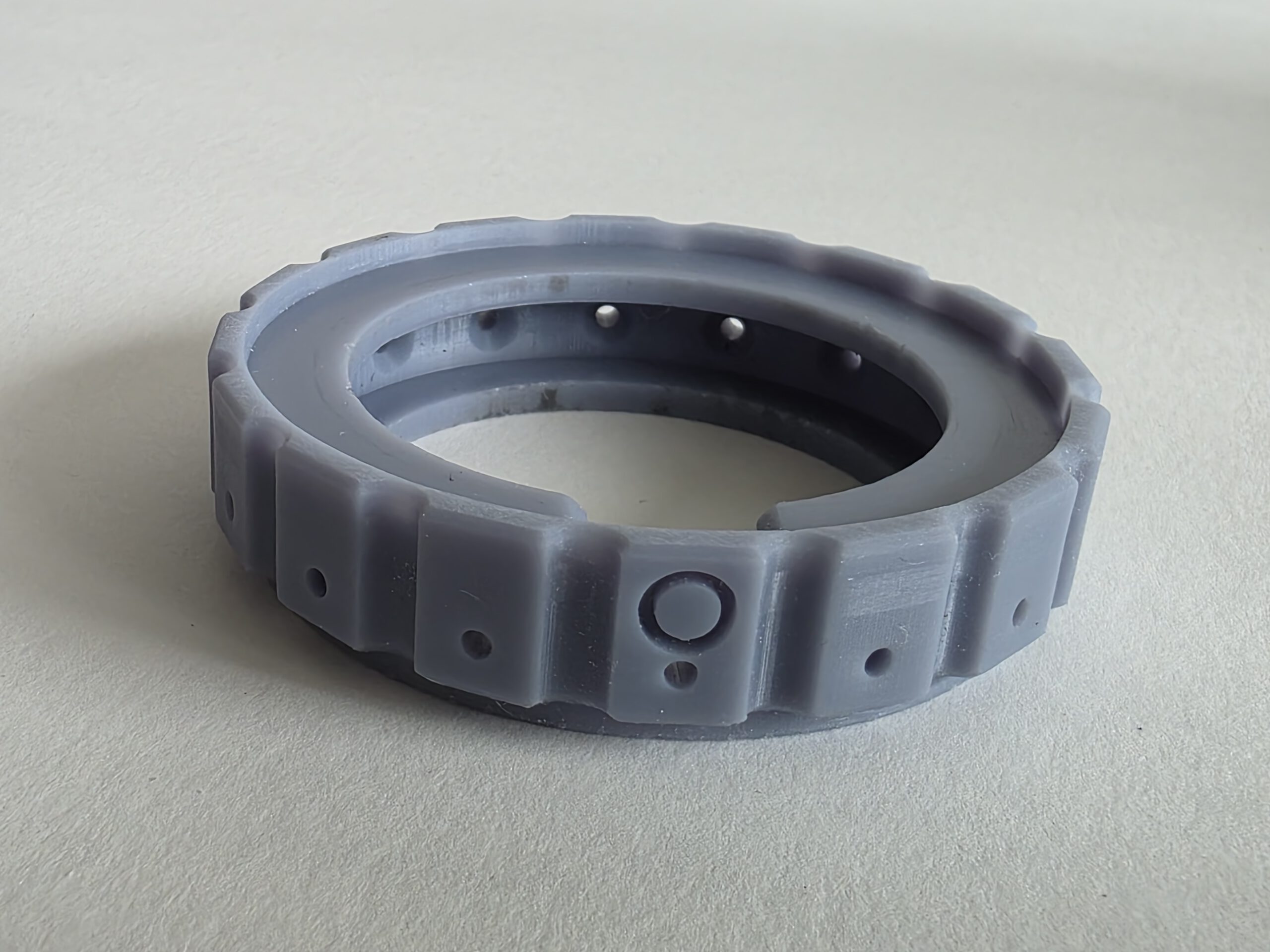
Slide the first click ring onto the outer tube.
Each click ring has a clearance slot that allows it to pass over the click mechanism. Align this slot with the click mechanism and slide the ring down into position.
Repeat this procedure until all 12 click rings have been installed.


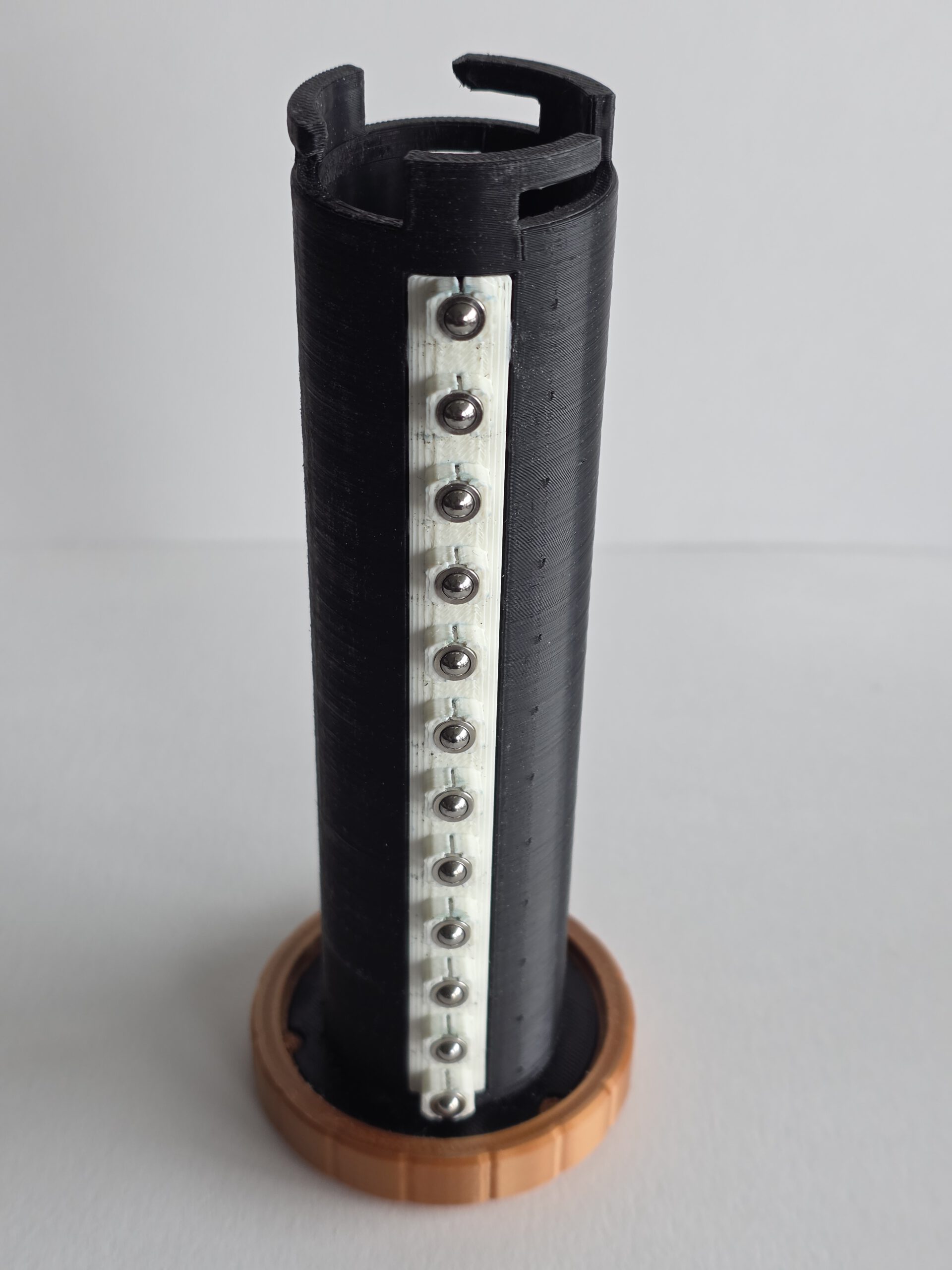
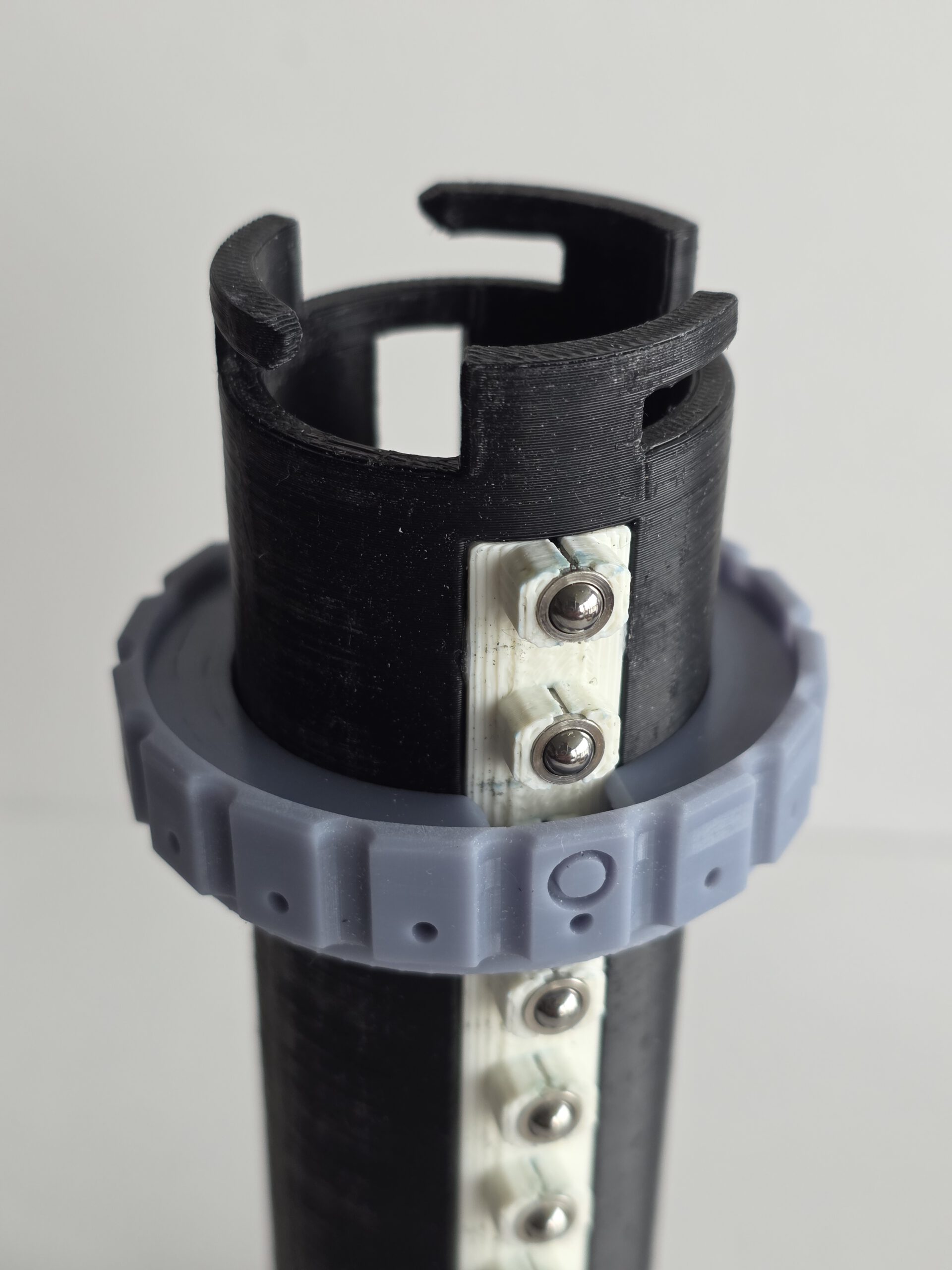
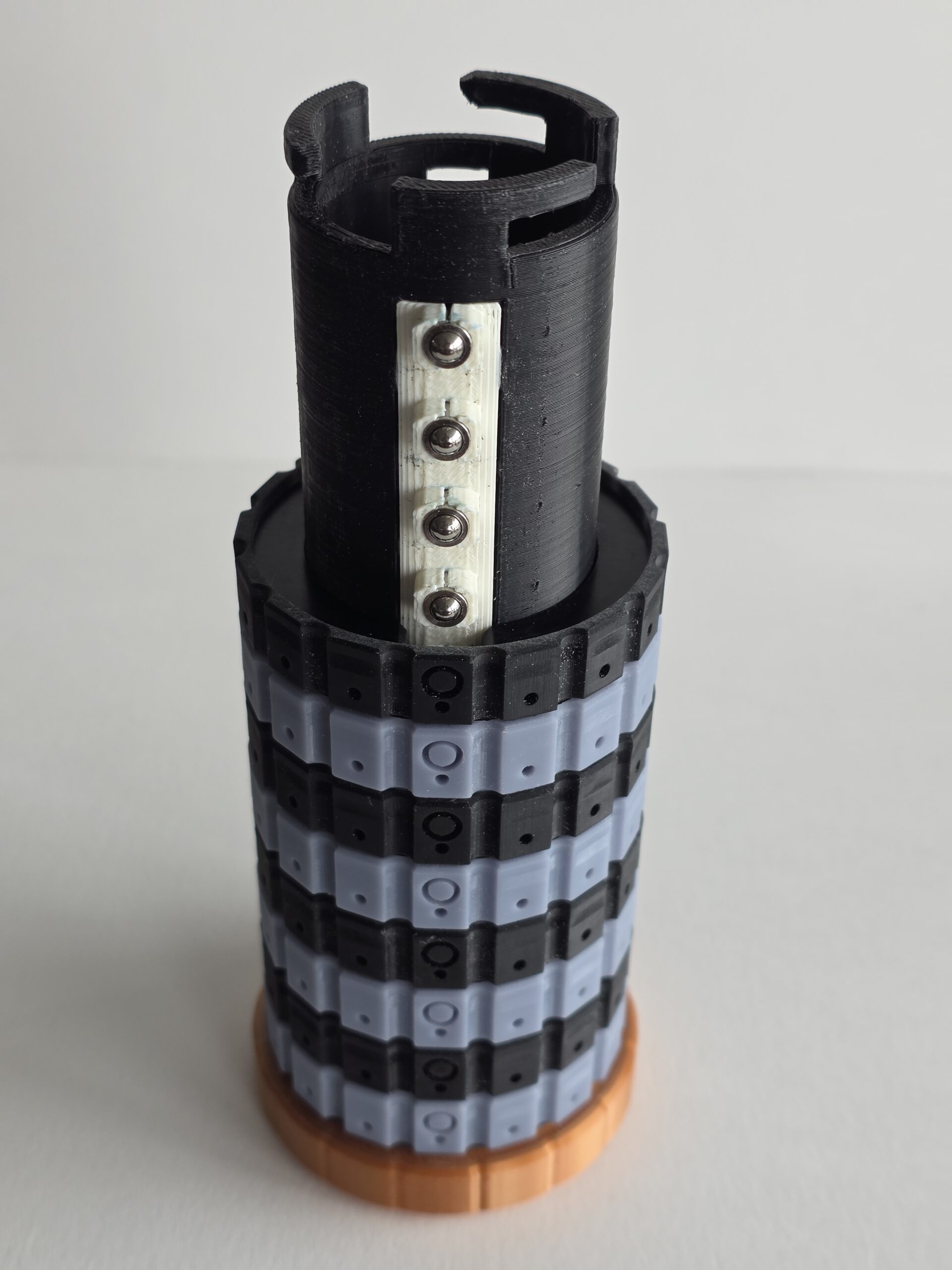
Step 2 — Move the Click Rings to the Open Position
Once all twelve click rings are installed, rotate each click ring 180 degrees.
The clearance slots should now be positioned on the opposite side of the click mechanism, creating a continuous vertical clearance for the twelve lock pins on the inner tube.
The O markings indicate this lock-pin position. and should now align with the arrow on the fixed ring of the outer tube.
The CryptHEX is now in its open position.

Step 3 — Install the Code Rings and Set the Combination
Fit the twelve hexadecimal code rings onto their corresponding click rings.
The physical position of each code ring relative to its click ring determines which character will appear at the code-reading position when the lock-pin openings are aligned.
Position each code ring so that the desired hexadecimal character appears along the code-reading line indicated by the arrows at the top and bottom of the CryptHEX.
Repeat this for all twelve rings.
The twelve characters between the arrows now form the opening code.


Step 4 — Install the Locking Lid
Before inserting the inner tube, place the locking lid onto the CryptHEX and rotate it fully into its locked position.
This must be done before inserting the inner tube.
Once the inner tube has been installed, it mechanically prevents the locking lid from being rotated and removed.


Step 5 — Insert the Inner Tube
Check once more that all twelve code rings are correctly positioned.
The arrows at the top and bottom of the CryptHEX indicate the code-reading position. The twelve hexadecimal characters aligned between these arrows must show the intended combination.
Carefully slide the inner tube into the outer tube.
The twelve flexible lock pins should pass through the aligned openings without requiring significant force.
Do not force the inner tube. If it does not slide in freely, check that all twelve rings are correctly positioned.
Push the inner tube fully into position.


Step 6 — Lock the CryptHEX
Rotate several or all of the code rings away from the programmed combination.
The openings are now moved away from the lock pins, preventing the inner tube from being removed.
Because the inner tube also blocks the locking lid, the complete assembly is now mechanically locked.

The CryptHEX is now locked.
To open it again, rotate all twelve rings until the correct hexadecimal combination appears between the two arrows. This realigns all twelve openings with the lock pins, allowing the inner tube to be removed.
2. CryptHEX — Disassembly, Changing the Code and Reassembly
Before You Start
To change the combination, the CryptHEX must first be opened using its current 12-character hexadecimal code.
There is no externally accessible reset mechanism while the CryptHEX is locked.
Important: Do not start changing the code unless you know the current combination and can successfully remove the inner tube.
Step 1 — Enter the Current Code
Rotate each of the twelve code rings until the correct hexadecimal combination appears along the code-reading line indicated by the arrows at the top and bottom of the CryptHEX.
Check the complete 12-character code carefully.
When all twelve positions are correct, the internal openings will be aligned with the lock pins on the inner tube.
Step 2 — Remove the Inner Tube
Carefully pull the inner tube straight out of the CryptHEX.
The twelve flexible lock pins should pass through the aligned openings.
Only light resistance should be present.
Do not force it. If the inner tube will not slide out, check all twelve code positions again. A single incorrectly positioned ring is enough to prevent removal.
Once the inner tube has been removed, leave all rings in this position. The CryptHEX is now in its open position, and there is no need to rotate the rings by 180 degrees.
Step 3 — Remove the Locking Lid
With the inner tube removed, the locking lid is no longer mechanically blocked.
Step 4 — Remove the Code Rings
Keep the CryptHEX in its open position.
The twelve code rings can now be slid off the outer tube. Their clearance slots are already correctly aligned with the click mechanism, so there is no need to rotate the rings first. The “O” markings now should align with the arrow on the Fixed Ring on the outer tube.
Remove all twelve code rings.
Step 5 — Reinstall the Code Rings
With the CryptHEX still in its open position, slide the twelve code rings back onto the outer tube.
Each ring can be installed in a different rotational orientation. This is how the combination is mechanically programmed. DO NOT ROTATE the inner rings during this process.
Install each ring so that the hexadecimal character required for the new combination will appear at the code-reading position indicated by the arrows.
Repeat this for all twelve positions.
Step 6 — Set and Verify the New Code
Check the characters displayed along the code-reading line between the top and bottom arrows.
They should show your new 12-character hexadecimal combination.
Valid characters are:
0 1 2 3 4 5 6 7 8 9 A B C D E F
Check the entire code carefully before continuing.
At this point, the physical relationship between the code rings and their click positions defines the new combination. No additional programming or adjustment is required.
Write down the new code before continuing. The CryptHEX does not have a Forgot password? button.
Step 7 — Reinstall the Locking Lid
Place the locking lid onto the CryptHEX and rotate it fully into its locked position.
This must be done before inserting the inner tube.
Step 8 — Insert the Inner Tube
Keep the newly programmed code aligned between the arrows.
Carefully slide the inner tube into the CryptHEX.
The twelve flexible lock pins should pass freely through the aligned openings.
Do not force it. If the inner tube does not slide in easily, stop and check the position of all twelve rings.
Push the inner tube fully into position.
Step 9 — Lock the CryptHEX
Rotate several or all of the code rings away from the new combination.
The lock pins are now trapped behind the rings, preventing the inner tube from being removed.
Because the inner tube also prevents the locking lid from being released, the CryptHEX is now fully locked.
Step 10 — Test the New Combination
Before putting anything important inside the CryptHEX, test the new combination at least once.
Enter the new code between the arrows and verify that the inner tube can be removed.
Reinsert the inner tube and scramble the code rings again.
Verify that the inner tube and locking lid are both securely locked.
Your new combination is now ready for use.
And REMEMBER the code. There is no master key, backdoor or recovery code. There is however… the saw…
What do you need to build this CryptHEX
The STL Files
The Spring Loaded ball Plunger – 5mm

You’ll need 12 pieces.