

Please see: Zelda: Breath of the Wild – Guardian Sword with NeoPixel LEDs for the original design of Adafruit.
Why this remix of an already beautiful design?
I made the original Zelda :BOTW Guardian Sword with NeoPixel Leds for my daughter and it looked really cool. After a few months the sword fell to the ground and broke into two pieces. The original design was nice, but not that sturdy, and… I also thought it was quite boxy.
A sturdier and more streamlined design
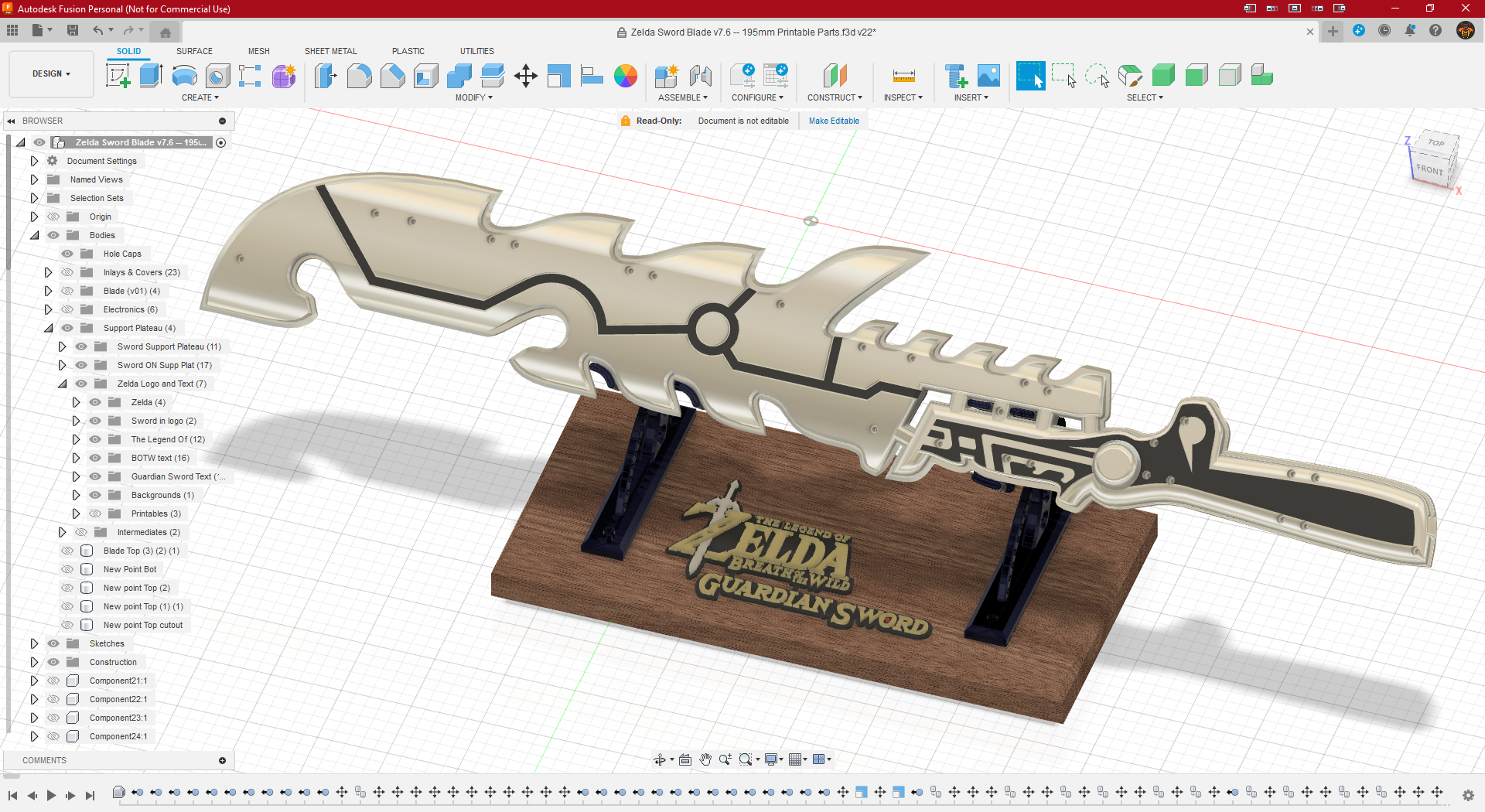
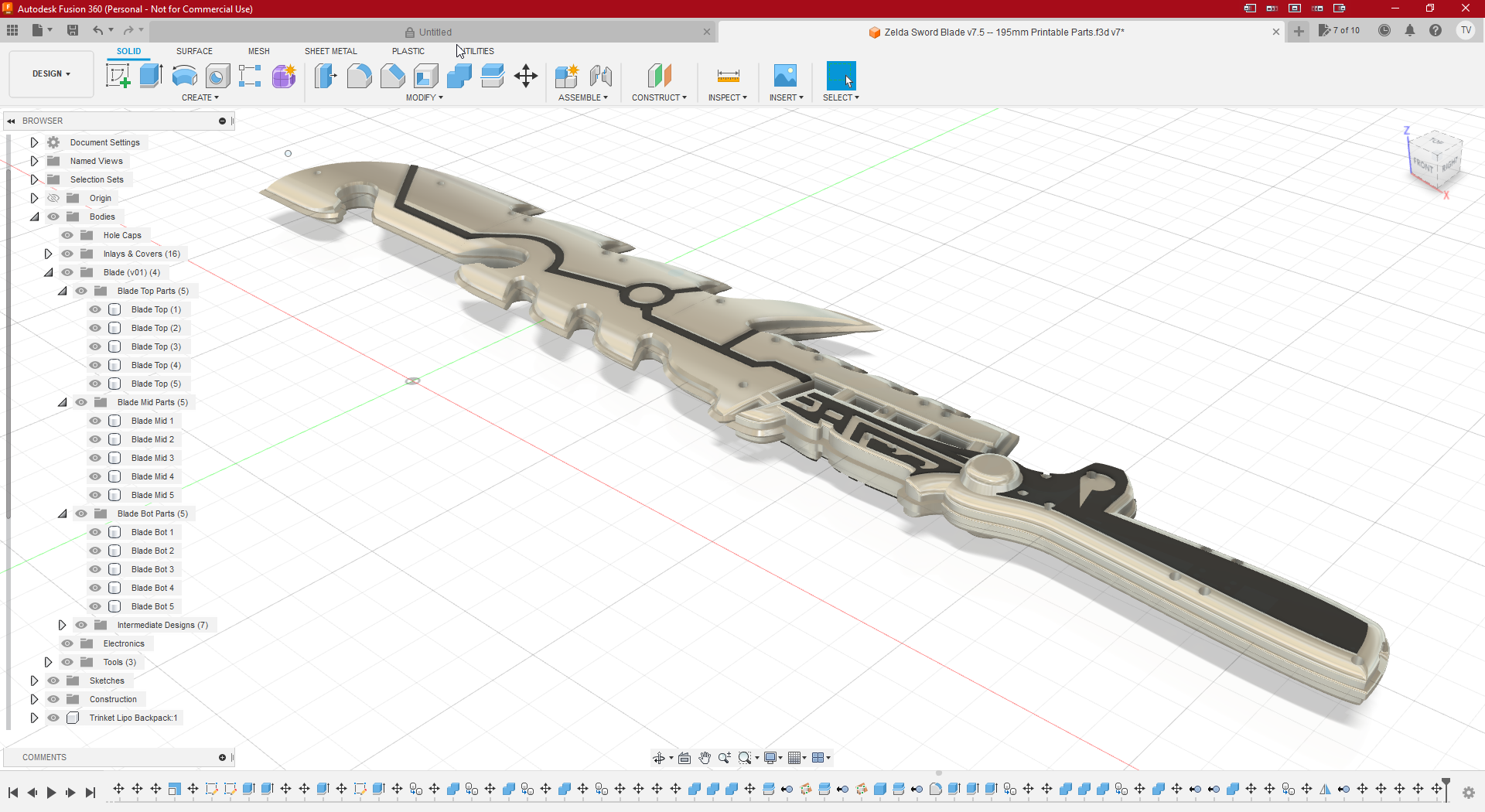
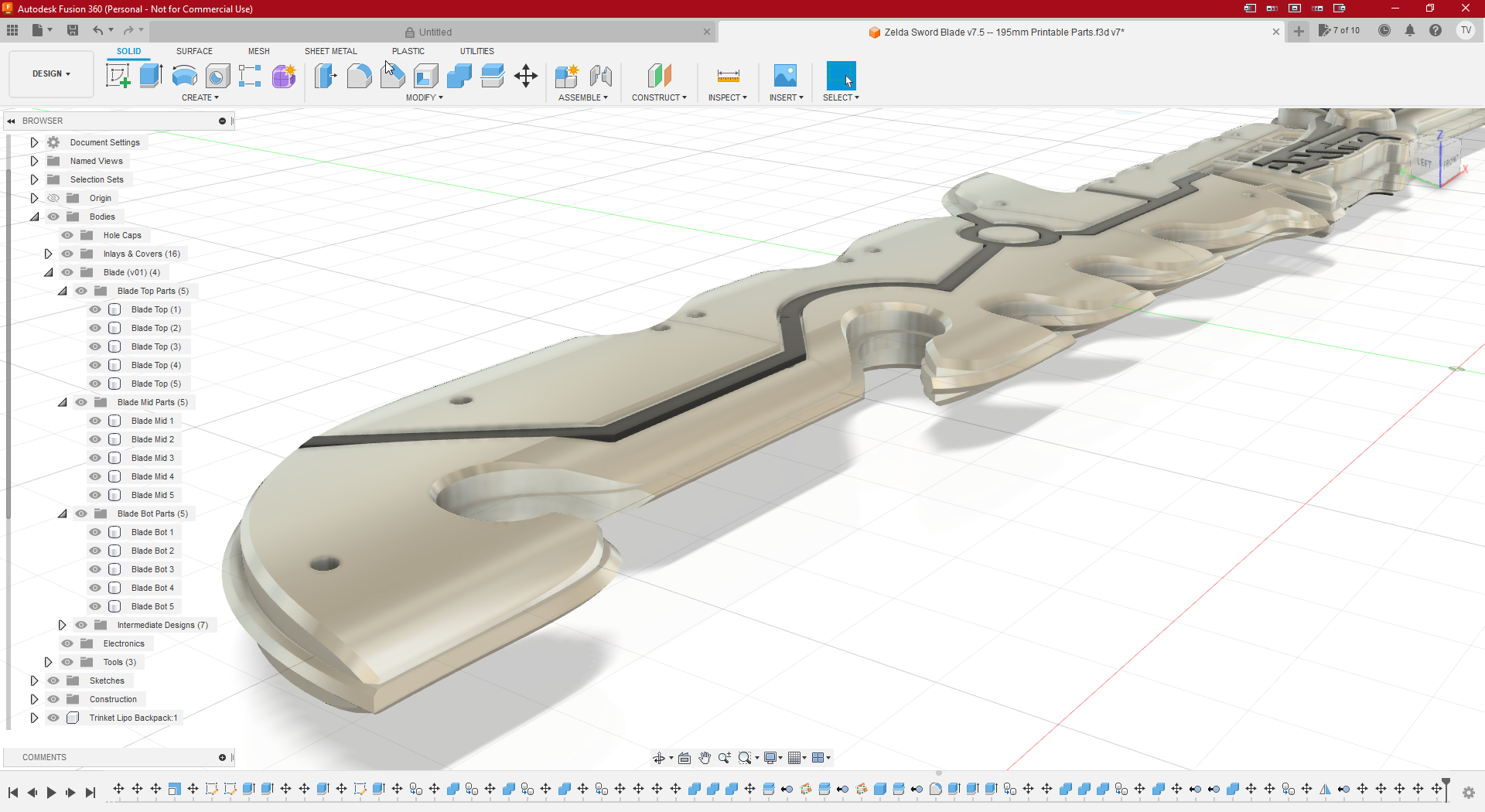
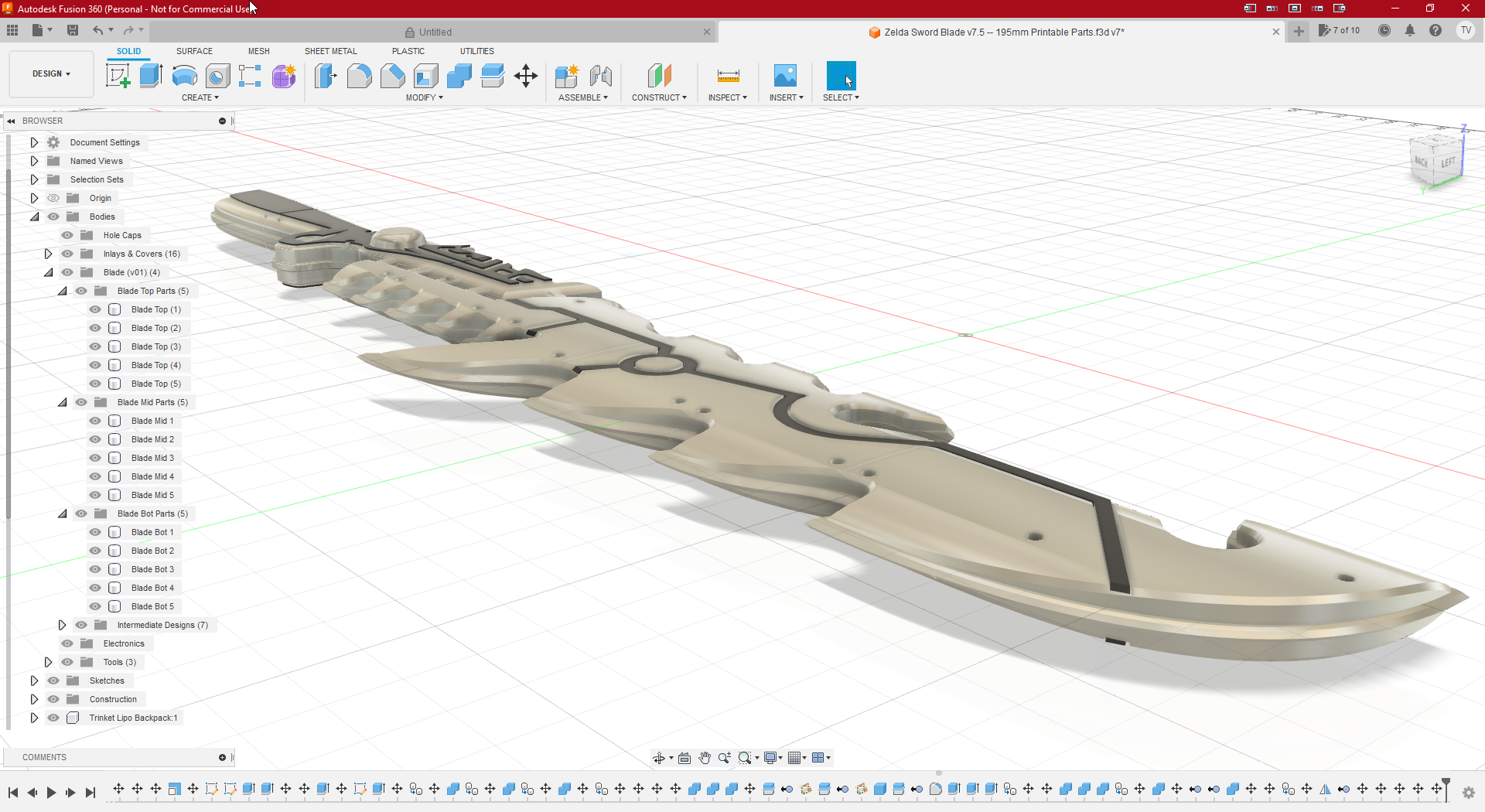
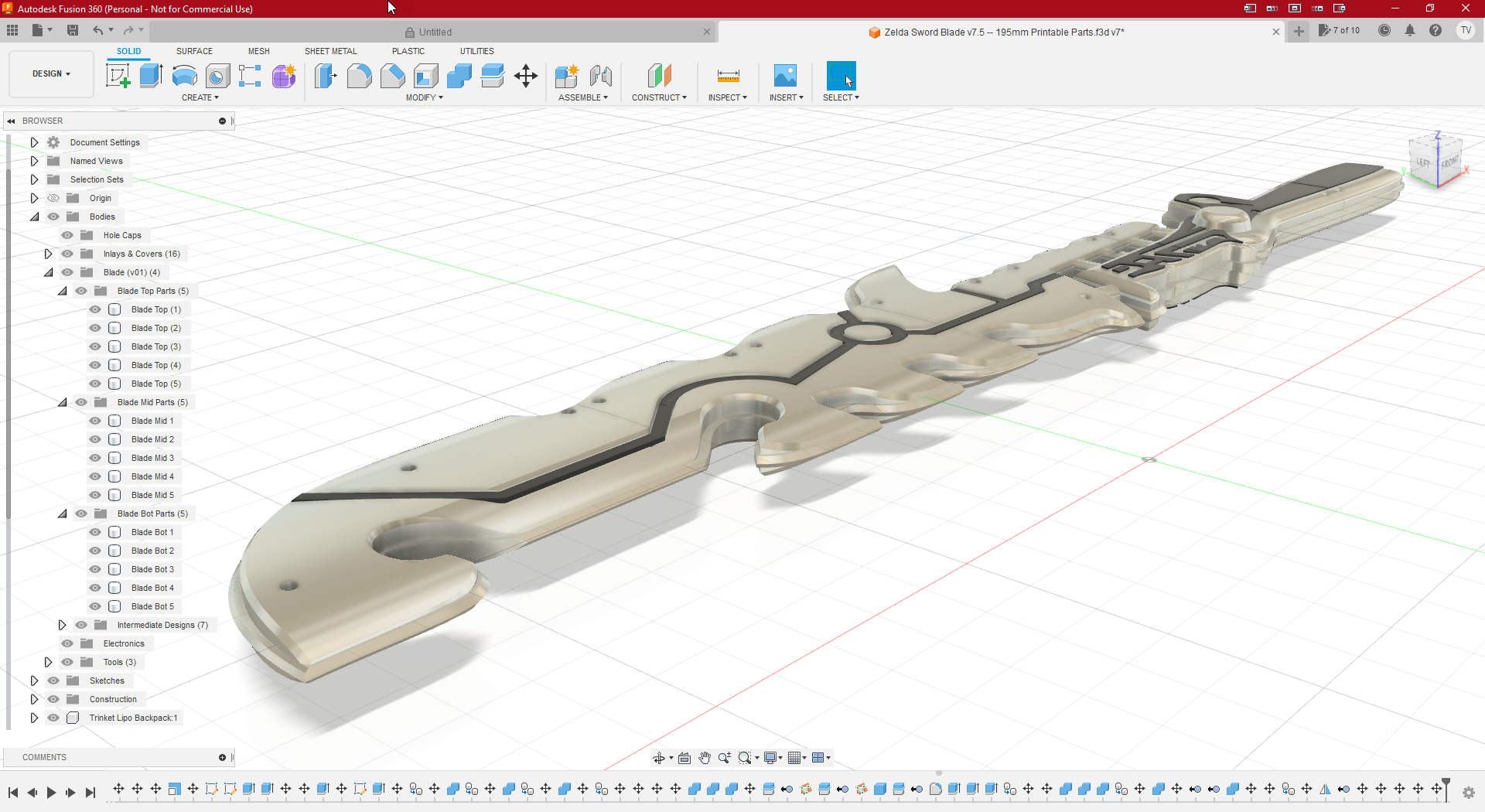
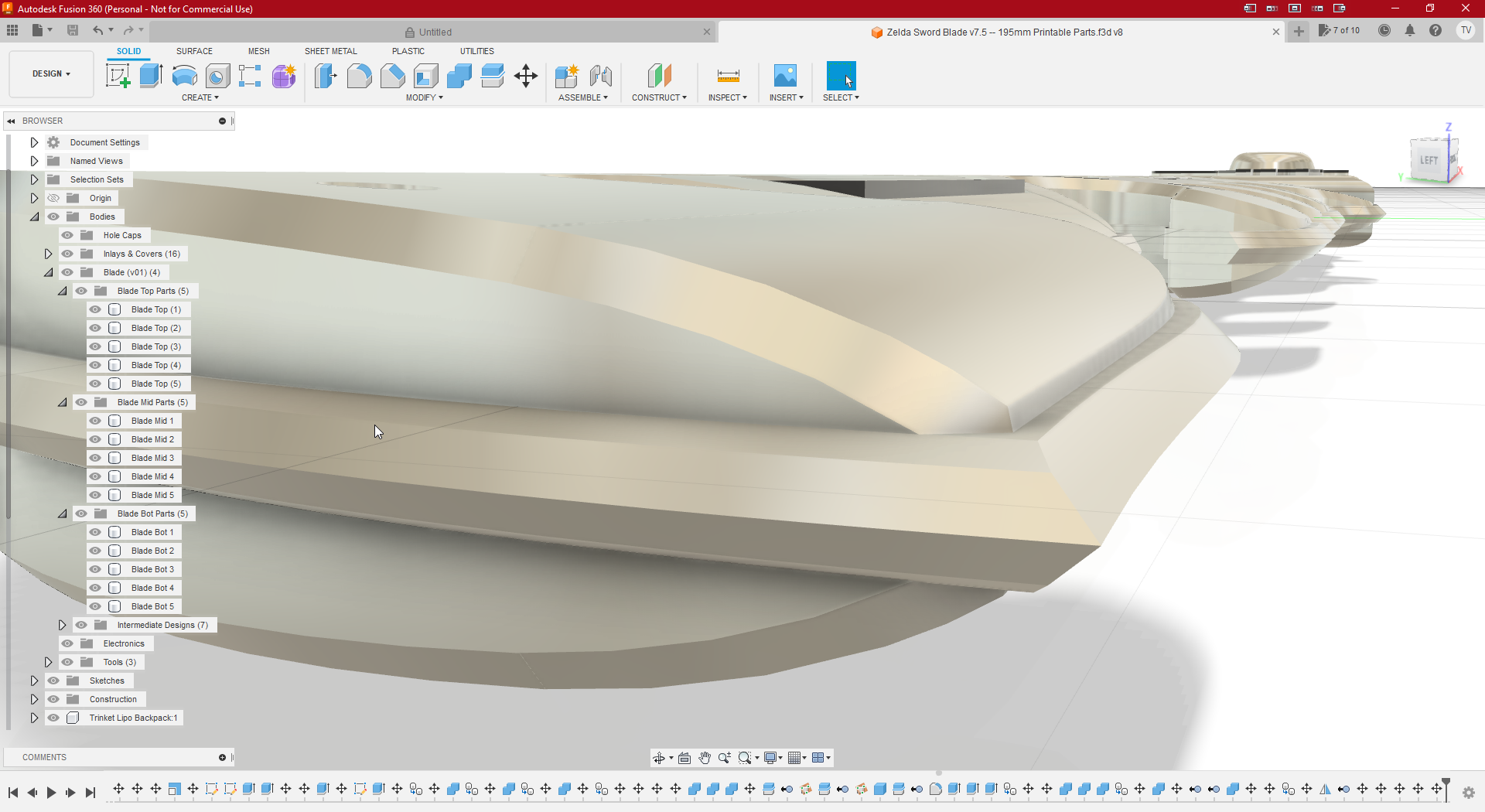
Then I decided to make a sturdier design that also had more flowing lines and formed a kind of sharp blade. I divided the sword into three layers that are mounted in overlapping brick bond for maximum strength. All corners are rounded and the middle layer creates an illusion of sharpness. For the rest I stayed as close to the original outline as possible because I liked it.
How it looked on the drawing Board




Assembling the sword
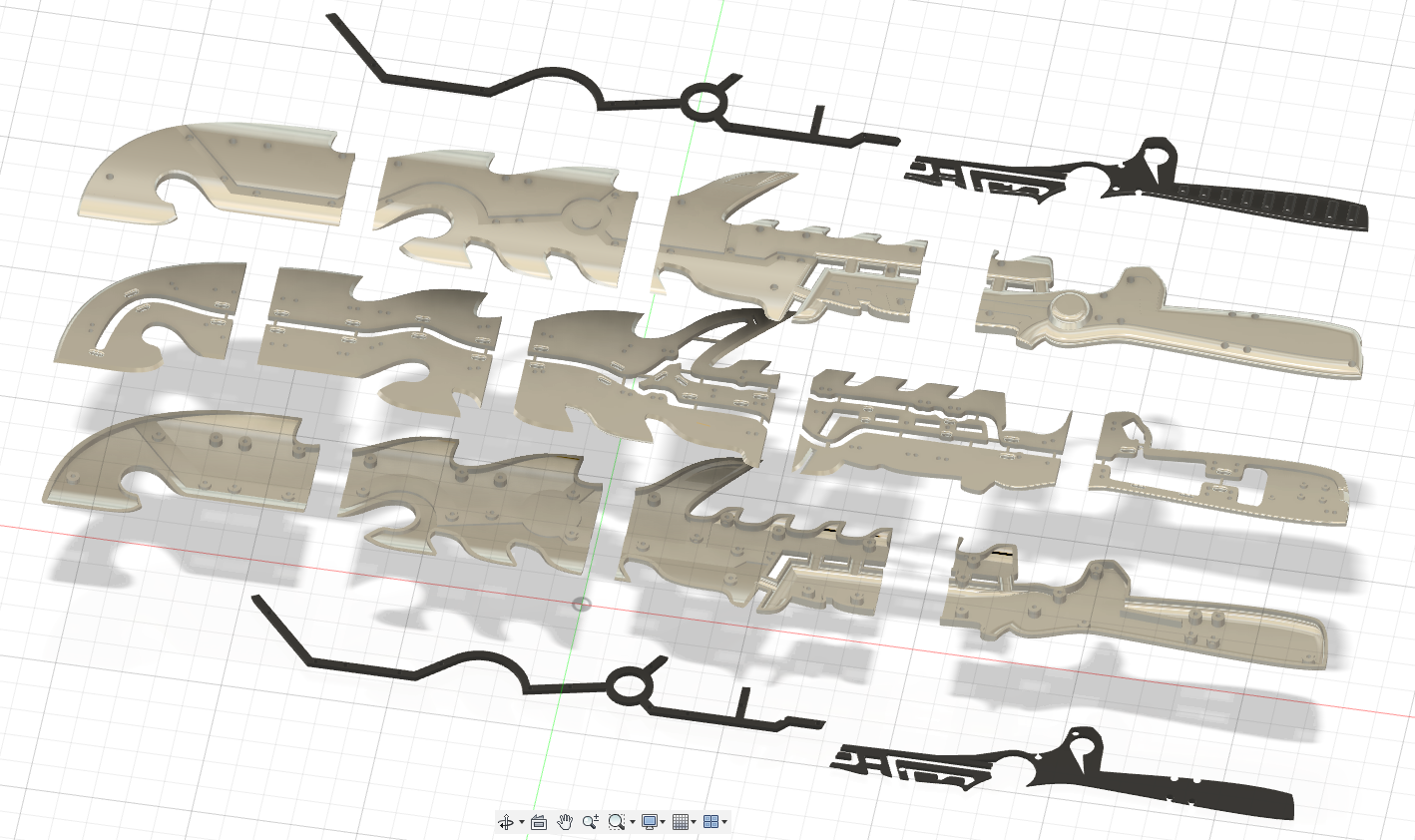
General Construction


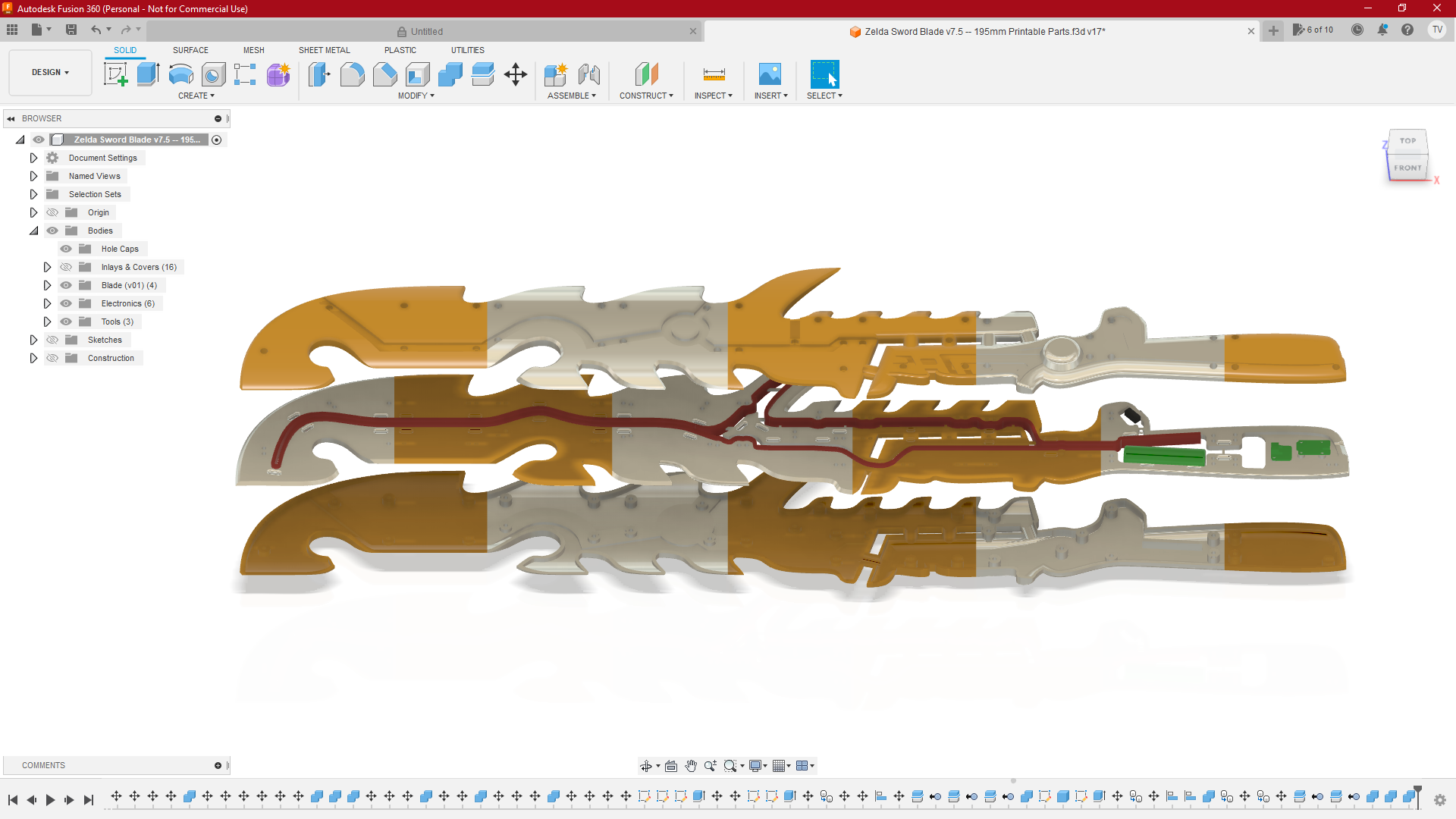
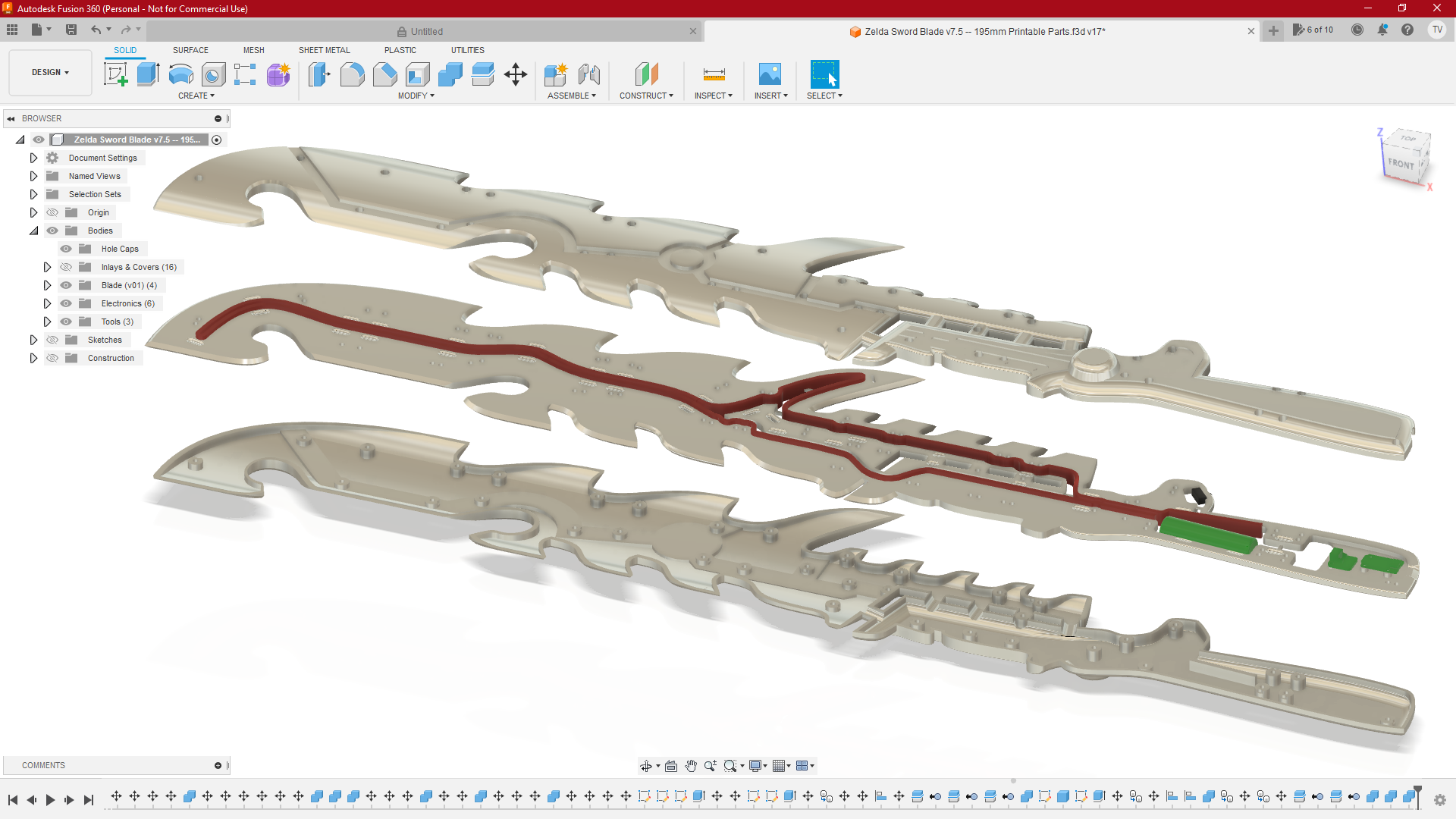

Step 1: heat inserts
There are holes in the middle layer where M3 Heat Inserts can be mounted. The outsides can then be fitted with M3 hexagon socket screws.

Step 2: Screw on one of the outsides
There is a recess in the center surface for the LED strip. If the center surface is screwed to one of the outside edges, the paceholders that are in various places in the recess can be cut away.
Step 3: mount the LED strip
The LED strip can then be secured with the slotted holes that are located in various places along the recess.
Step 4 Install the other outside
If you then screw the second (other) outside onto it, you get a very sturdy whole. Leave the handle open to mount the electronics. I have added a number of screenshots that explain some things in words and images.
Step 5 Electronics
For an explanation of the electronics, I would like to refer you to the original design: Zelda: Breath of the Wild – Guardian Sword with NeoPixel LEDs. See attached photos to see how to install the electronics.


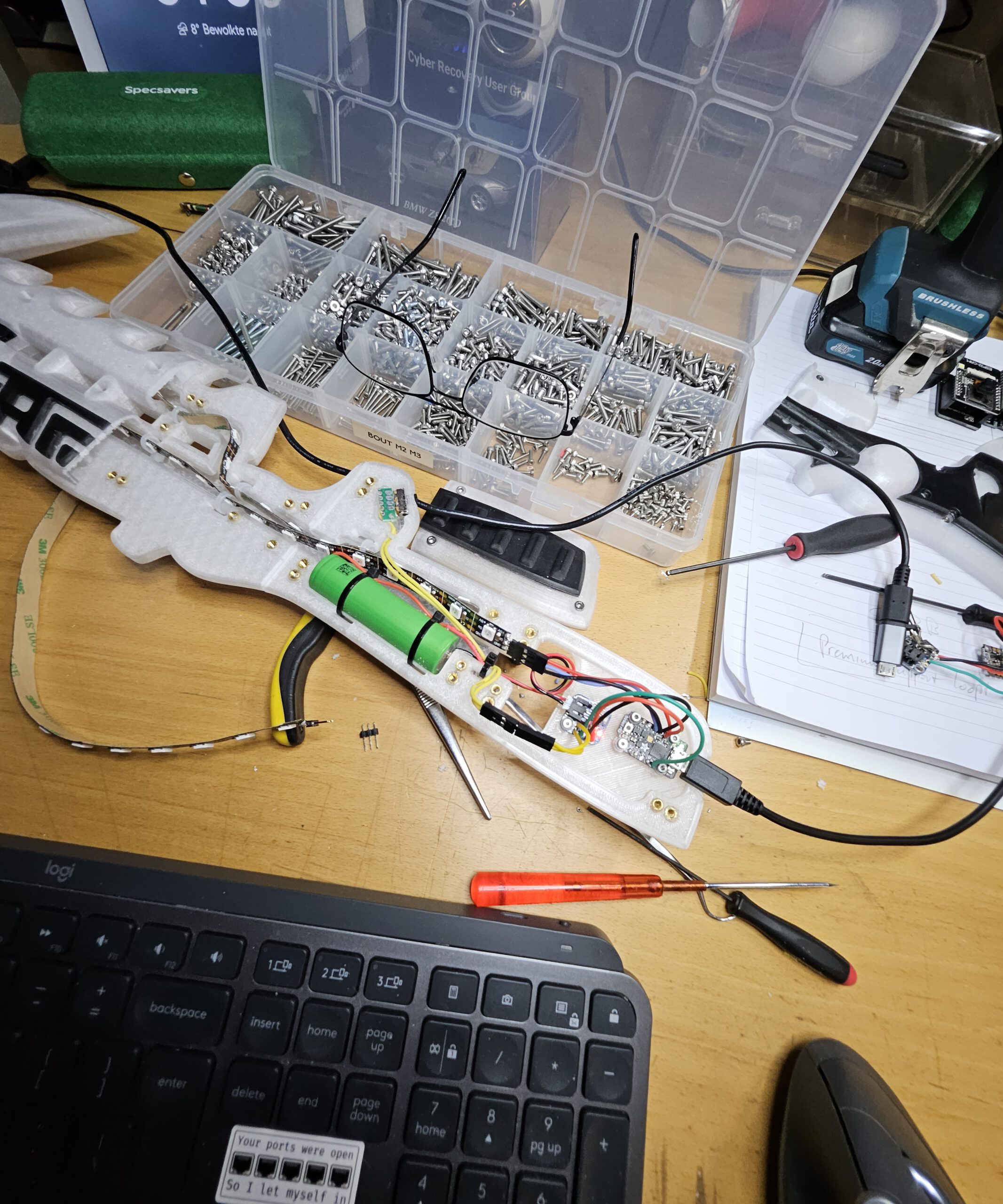
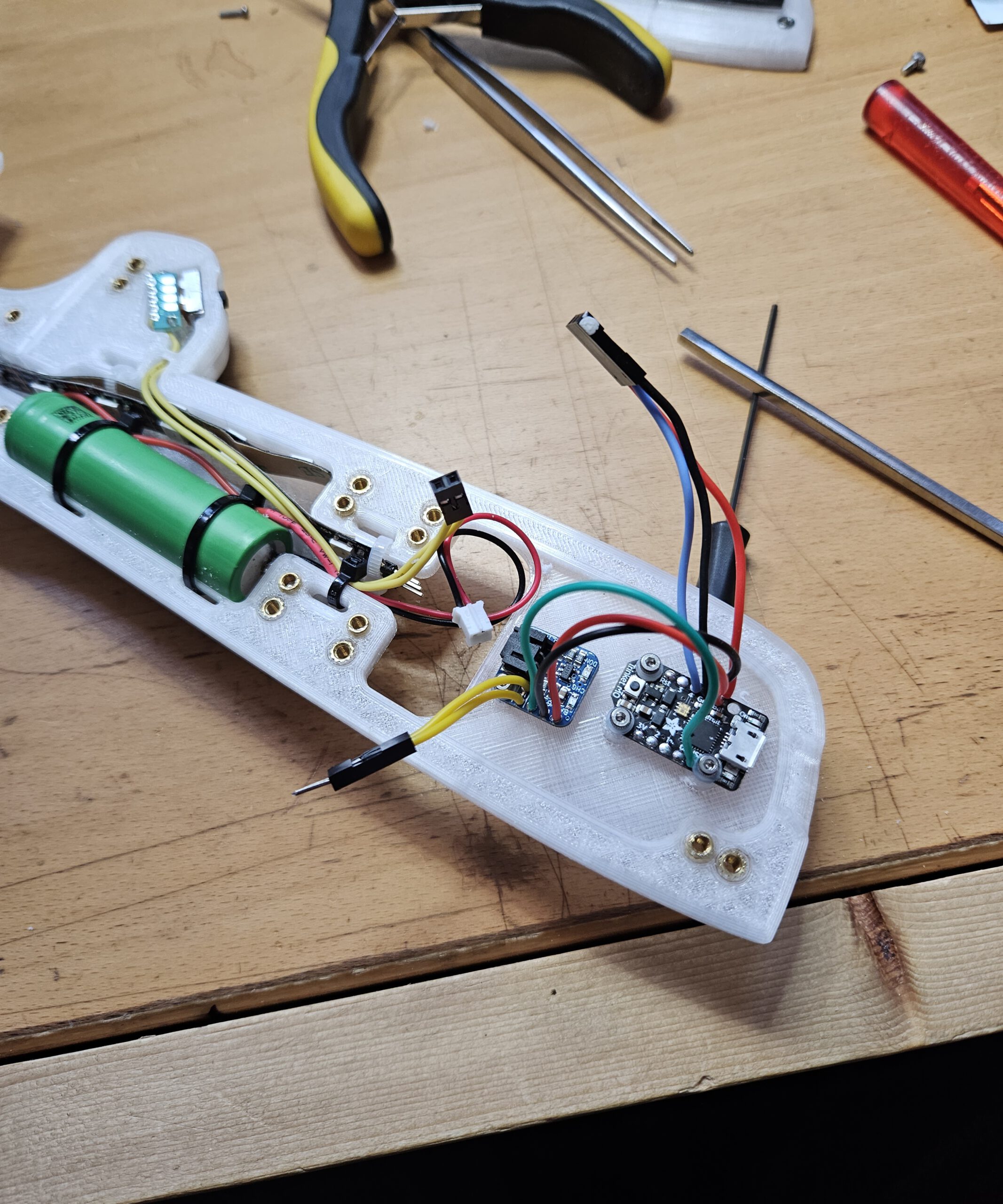
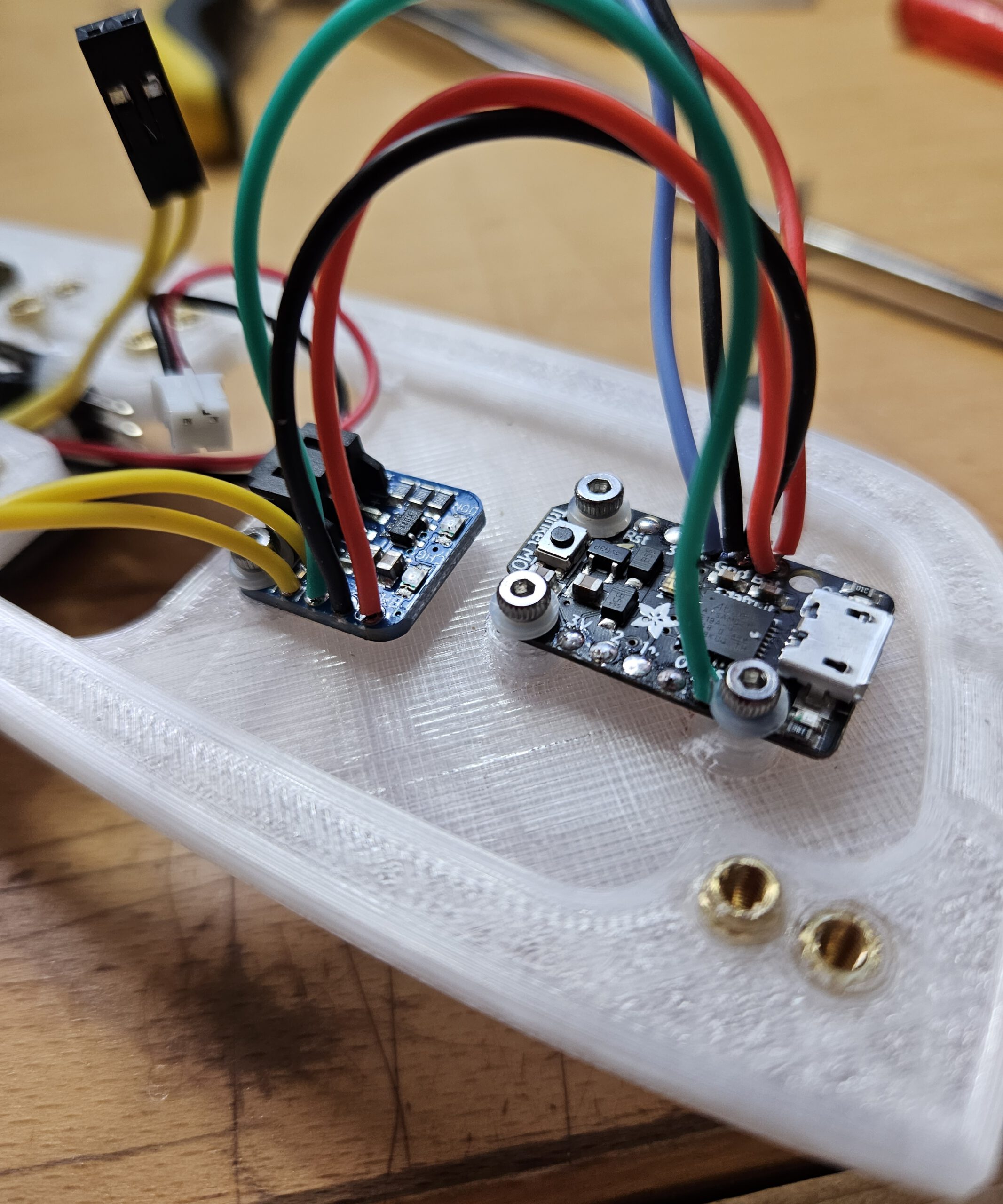

Then screw on the handle covers.
Step 6: Black details
Please note that the black details for the handle have placeholder connections. Do not glue these in place and cut them away after the glue has dried. Glue the black details in place (see photos).
And then your sword is ready.
Display base and Logo
In addition to the sword, I also designed a display base with the Zelda Logo on it.


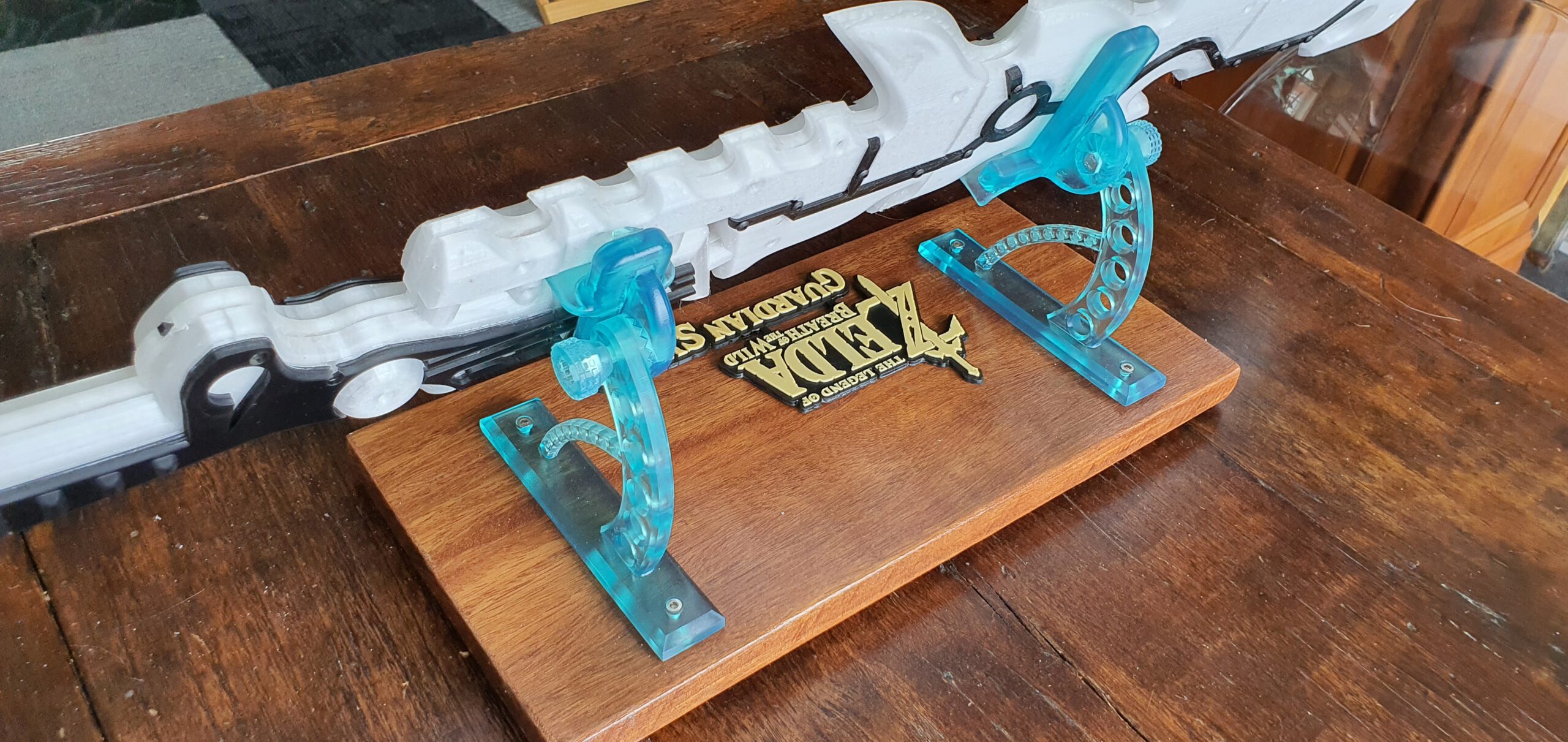
Step 7: The Two-Tone Logo
The logo is printed with resin (liquid) with the black resin halfway replaced by yellow. (Try it, it works fine, pause the print, remove the build plate, rinse briefly, hang it back, put in a different color of resin and start again.) You can of course do something similar in your filament printer, pause, replace filament and start again.
Step 8: The support brackets
The brackets on which the sword rests are adjustable. This adjustability allows you to choose whether you want to place the base plate on something or hang it on the wall. You can adjust the angle according to your preference. I also printed those brackets with resin because you can then achieve a nice glass-like result.
Step 9: The base plate
I made it from wood because it has a very chic finish. But of course you can also print something.
Remark on supports
You must use supports for the outsides of the sword when printing. Normally I always try to make designs that you can print without supports, because supports always leave traces when removed, but that was not possible here.
Fortunately, they are on the inside and I recommend that you do not sand the surface completely smooth after removal because the irregularities give the light a nice diffuse character.
Print Settings
- Printer brand: VoronDesign
- Printer: Voron 2.4r2 – 350 (with mod’s)
- Rafts: No
- Supports: Yes (see Notes below)
- Resolution: n/a
- Infill: n/a
- Filament brand: n/a
- Filament color: White & Black
- Filament material: PETG or ABS

